Electron microscopy
 
Widget in Tkinter
- Python Automation and Machine Learning for ICs -
- An Online Book -
Python Automation and Machine Learning for ICs                                                    http://www.globalsino.com/ICs/        


Chapter/Index: Introduction | A | B | C | D | E | F | G | H | I | J | K | L | M | N | O | P | Q | R | S | T | U | V | W | X | Y | Z | Appendix

=================================================================================

Table 4528. Widget naming conventions.

Widget Class Variable Name Prefix Example
Label lbl lbl_name
Button btn btn_submit
Entry ent ent_age
Text txt txt_notes
Frame frm frm_address

================================================

Add inputs: code:
         Plot histogram in numpy
Output 1:         
         Plot histogram in numpy
         Plot histogram in numpy
         Plot histogram in numpy         
Output 2 (with a code line of "print(int(ent1.get())+int(ent2.get()))"):                   
         Plot histogram in numpy
         Plot histogram in numpy         

================================================

Plot histogram in numpy, e.g. text: code:
         Plot histogram in numpy
Output:         
         Plot histogram in numpy

============================================

Pop-up windows: code:          
          Switch from SUNKEN to FLAT after lelft-click
Output:         
          Switch from SUNKEN to FLAT after lelft-click

============================================

reliefs: code:          
          Switch from SUNKEN to FLAT after lelft-click
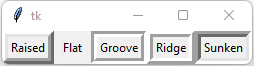
Output:         
          Switch from SUNKEN to FLAT after lelft-click

============================================

Switch from SUNKEN to FLAT after lelft-click: code:          
          Switch from SUNKEN to FLAT after lelft-click
Output 1:         
          Switch from SUNKEN to FLAT after lelft-click
Output 2 (after left-click):           
          Switch from SUNKEN to FLAT after lelft-click 
          Switch from SUNKEN to FLAT after lelft-click

============================================

Place of lables on the window: code:
         Prevent the window from resizing
Output:         
         Prevent the window from resizing

============================================

Place of lables on the popup window: code:
         Prevent the window from resizing
Output:         
         Prevent the window from resizing

============================================

Place of lables on the popup window will "fill": code:
         Prevent the window from resizing
Output:         
         Prevent the window from resizing

============================================

Place of lables on the popup window with margin will "fill" and "padx": code:
         Prevent the window from resizing
Output:         
         Prevent the window from resizing

============================================

Place of lables on the popup window with margin will "ipadx": code:
         Prevent the window from resizing
Output:         
         Prevent the window from resizing

============================================

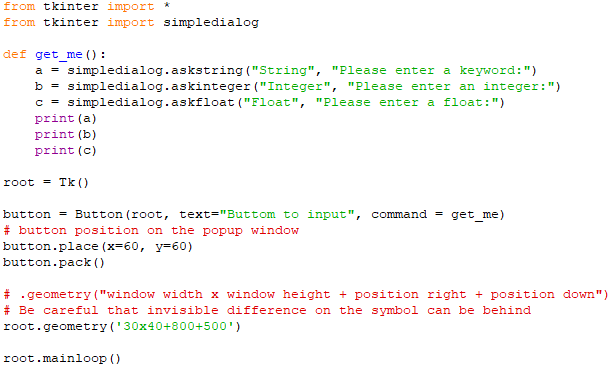
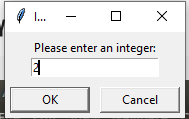
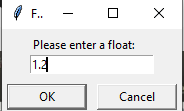
pop-up input windows one by one: code:
         Snipping tool: take a screen shot from the full screen
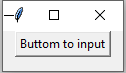
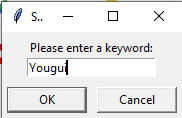
Popup windows :         
         Snipping tool: take a screen shot from the full screen
         Snipping tool: take a screen shot from the full screen
         Snipping tool: take a screen shot from the full screen
         Snipping tool: take a screen shot from the full screen
Output:         
         Snipping tool: take a screen shot from the full screen


=================================================================================